Google Authenticator or Other TOTP Application
Multi-Factor Authentication (MFA) helps keep your account and data secure. Follow the steps below to set up Google Authenticator or Other TOTP authenticator app on your mobile device.
Step 01
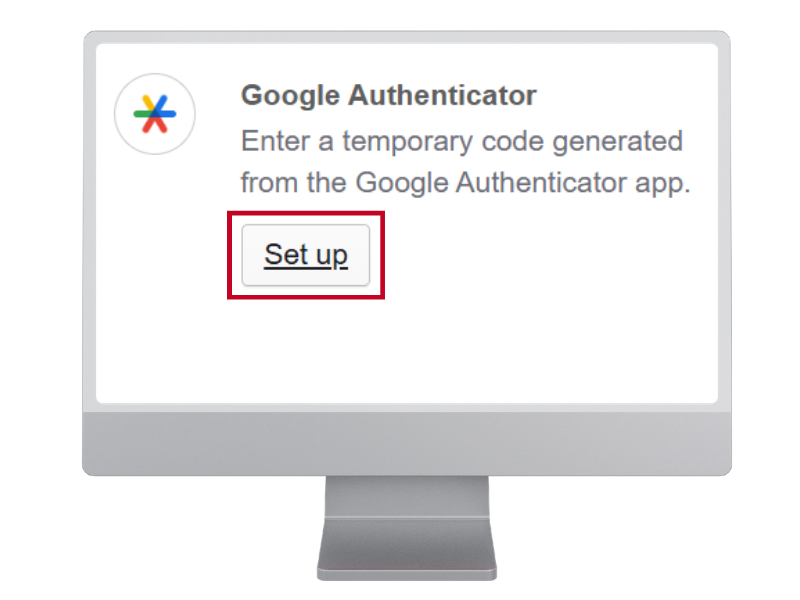
On your computer, click the Set up button for Google Authenticator.
Selecting "Google Authenticator" provides a QR code compatible with Google, and other Time-Based One-Time Passcode (TOTP) generators like Duo, Rapid Identity, Microsoft, and most third-party security apps.
Step 02
Add Account to Authenticator App
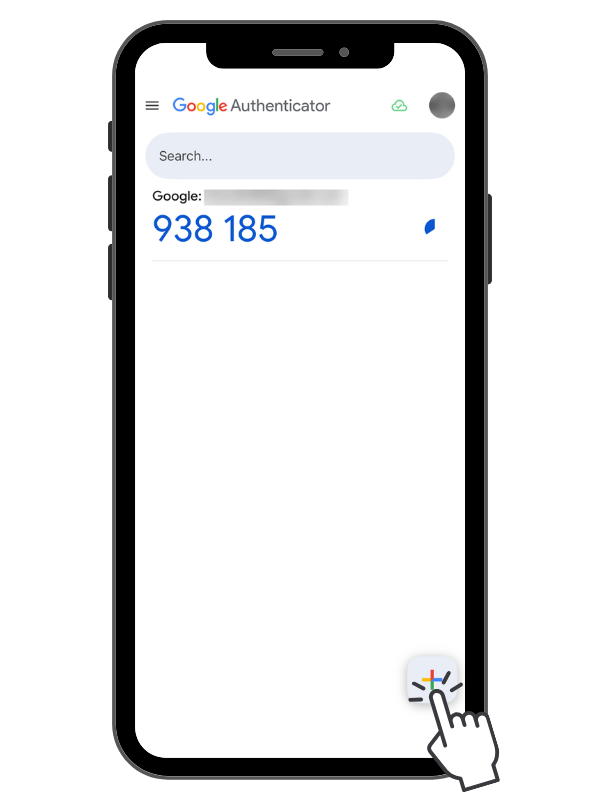
Open your authenticator application. Click the "+" plus symbol to add your Cardinal account.
Step 03
Scan QR Code
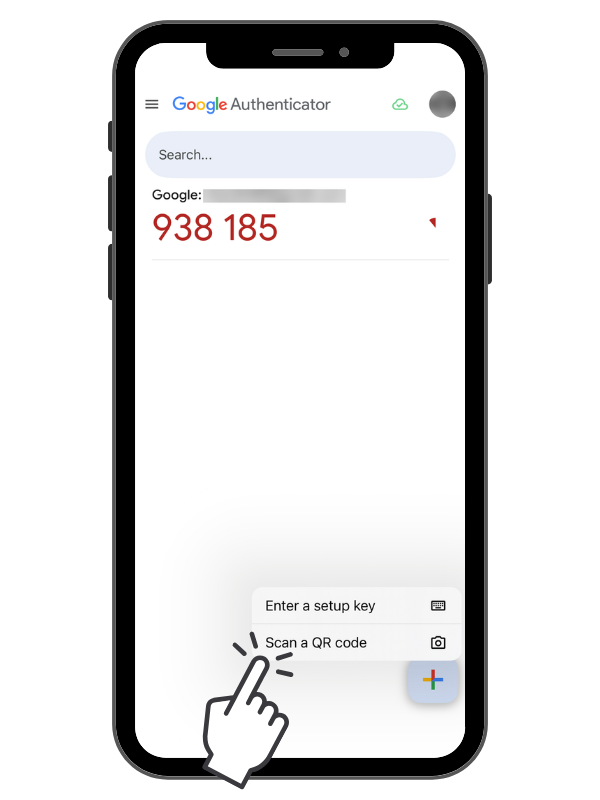
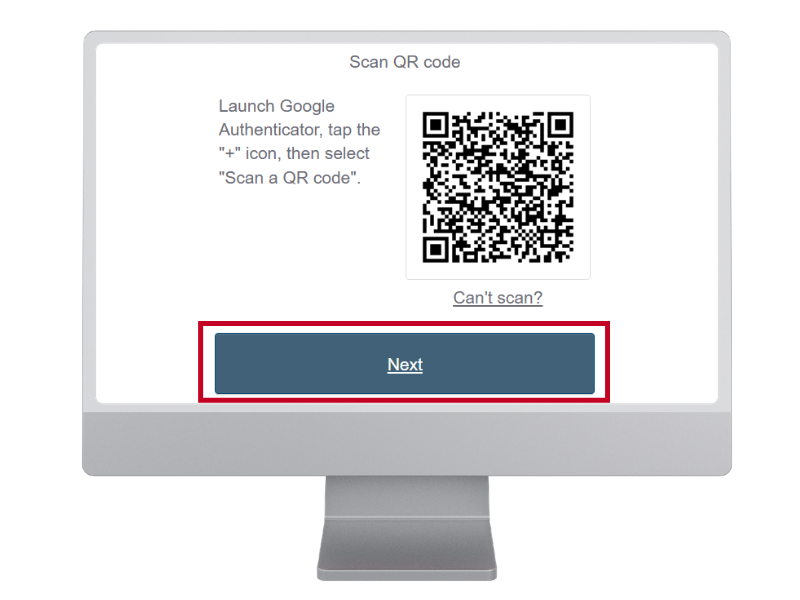
Tap "Scan a QR code". Point your device's camera at the QR code on your computer screen to scan.
Note: If this is your first time using the authenticator app, your device may prompt you to allow access to your camera. Select allow.
Step 04
Account added
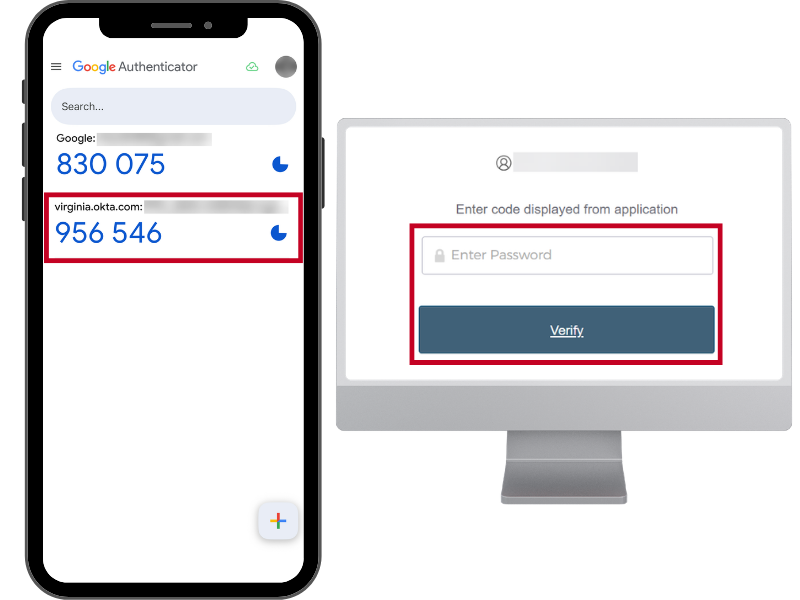
Once scanned, your Cardinal account will appear in your app listed as virginia.okta.com.
Click Next on your computer screen.
Step 05
Enter Code
Enter the code displayed for your virginia.okta.com account from your authenticator app into the field on your computer, then click Verify.
Note: These codes refresh every 60 seconds. If a code expires before you finish typing, simply enter the new code displayed in your app.
Step 06
Continue
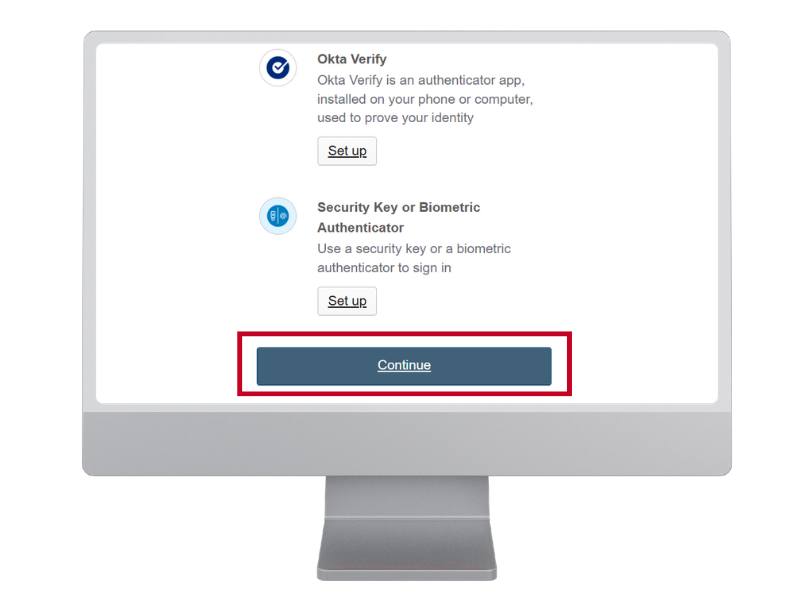
Once verified, you will arrive at the additional MFA setup options. Click Continue to finish logging in, or select Okta Verify if you wish to set it up as a secondary backup.
Step 7: Complete! 🎉
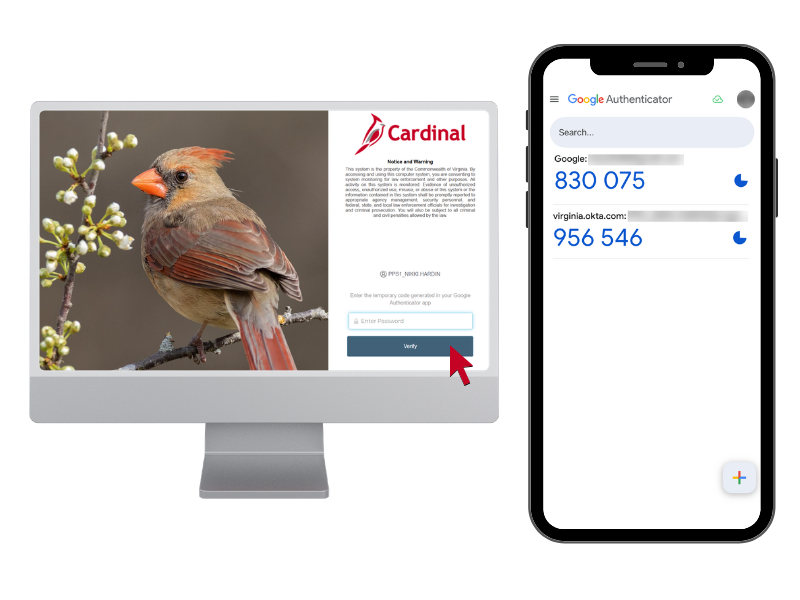
Google Authenticator setup is complete!
Congratulations! You have successfully configured your TOTP authenticator application as a Multi-Factor Authentication (MFA) option for Cardinal.