Okta Verify
Multi-Factor Authentication (MFA) helps keep your account and data secure. Follow the steps below to set up Okta Verify on your mobile device.
Step 01
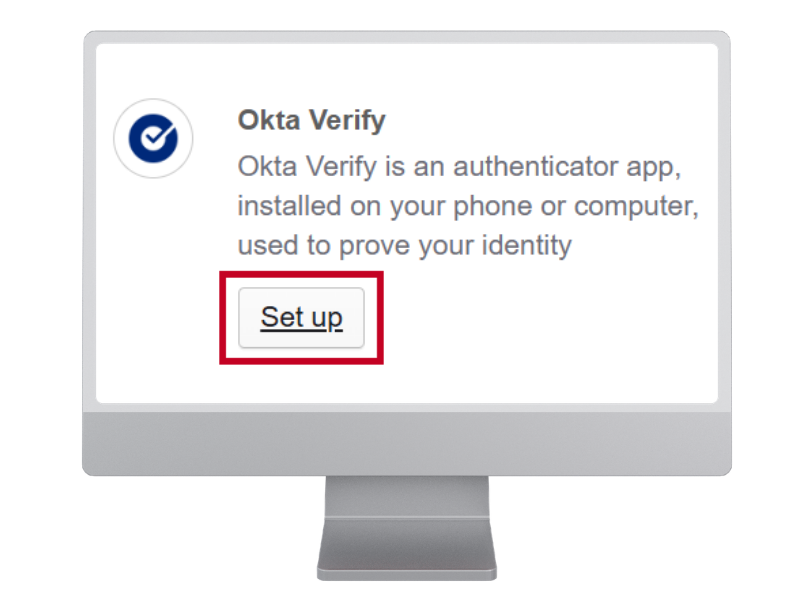
On your computer, click the Set up button for Okta Verify.
A screen with a QR code will populate for use with your smartphone's camera, keep this tab open to scan later.
Step 02
Download the Okta Verify app
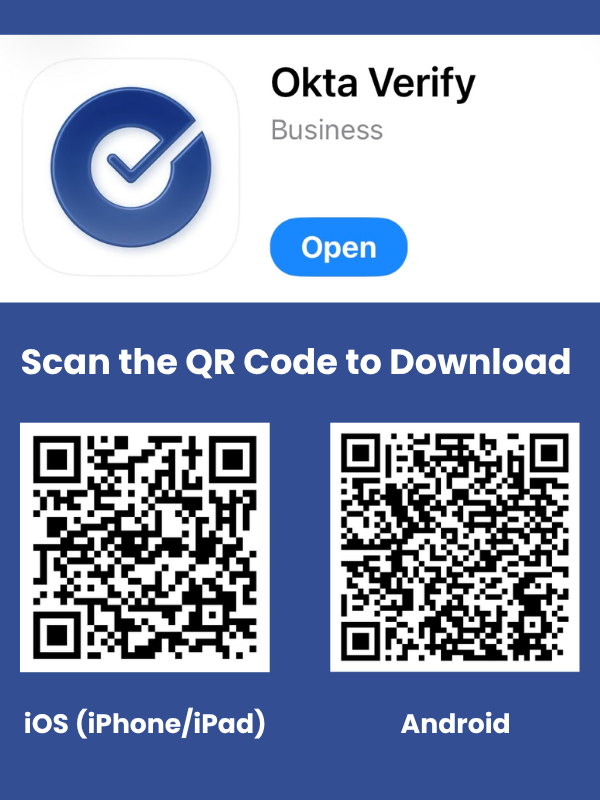
Go to the Apple App Store or Google Play Store and download the Okta Verify app. This app is free to use and does not require any purchases or subscriptions.
Note: If you already use Okta Verify on this device, skip to Step 04.
Step 03
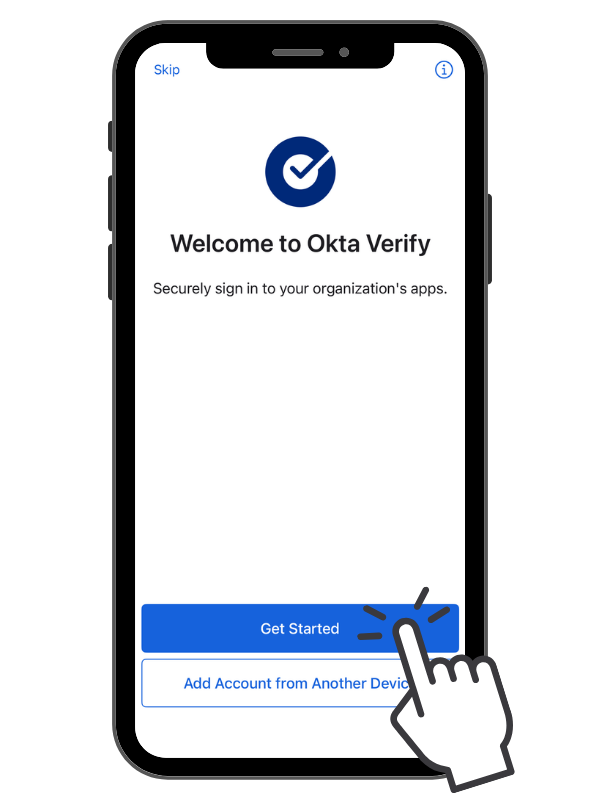
Open Okta Verify on your device
Tap Get Started, at the Welcome to Okta Verify screen. Follow the prompts on your device for the initial app setup.
Step 04
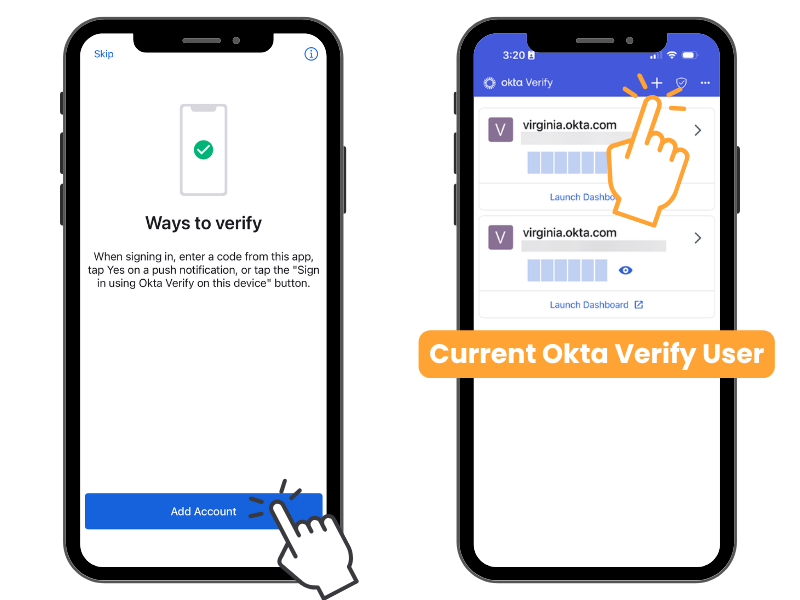
Add Account
New Okta Verify users: Tap the Add Account button
Current Okta Verify users: Tap the "+"(plus) symbol in the top right corner
Step 05
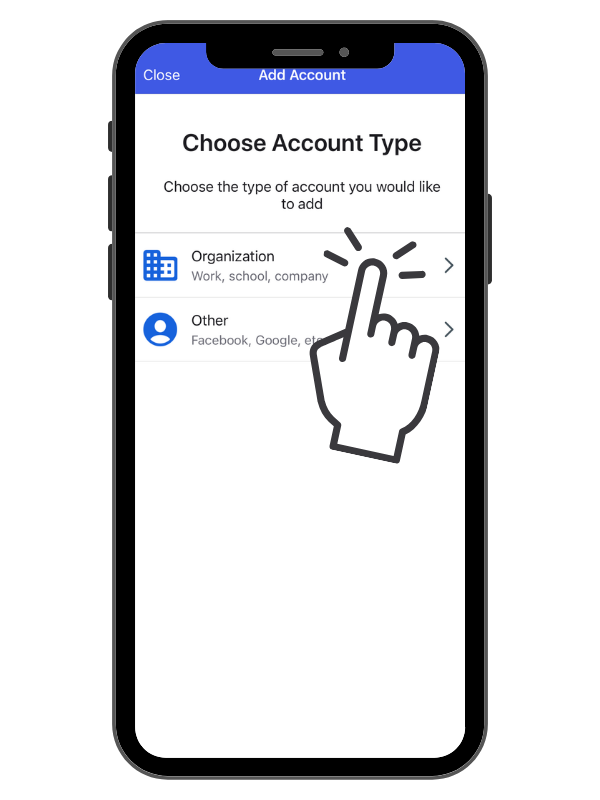
Choose Account Type Organization
When prompted to choose the account type you want to add, tap Organization.
If prompted to Add Account from Another Device?, tap Skip.
Step 06
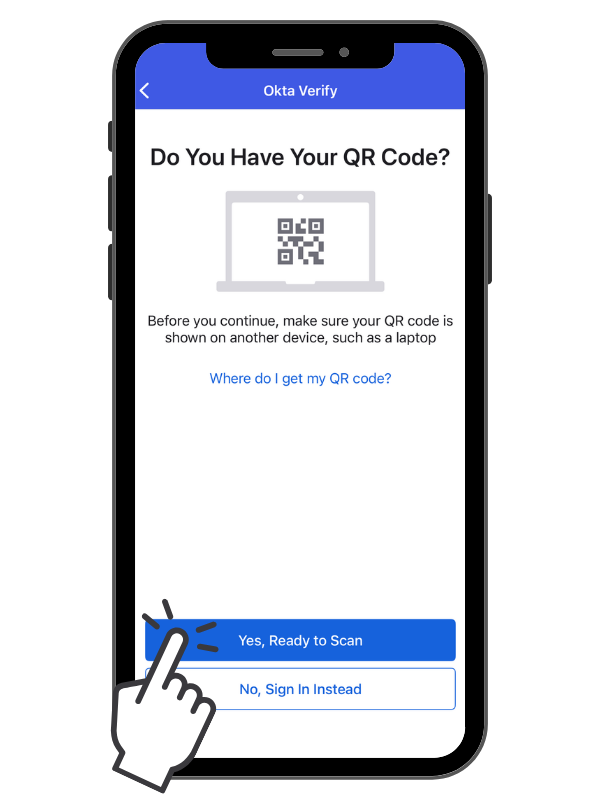
Scan the QR Code
Tap Yes, Ready to Scan. Point your device's camera at the QR code on your computer screen.
Note: If this is your first time using the Okta Verify app, your device may prompt you to allow access to your camera. Select allow.
Step 07
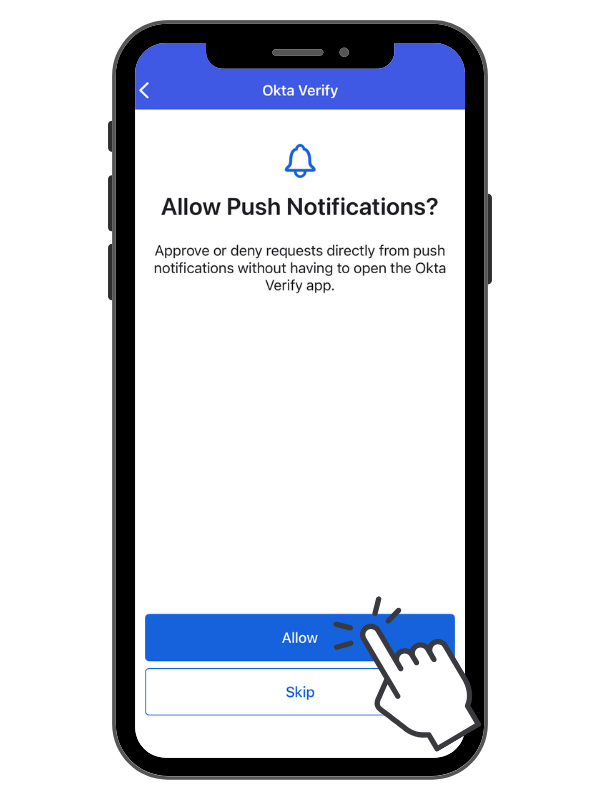
Enable Notifications
When prompted, allow notifications to sign in faster. This lets you approve logins with a single tap rather than manually opening the app for a code.
- iOS: Tap Allow when prompted for "Push Notifications."
- Android: Tap Got it when prompted to "Make signing in easier."
Note: If you decline, you will have to manually open the app and enter a 6-digit code (TOTP) every time you log in.
Step 08
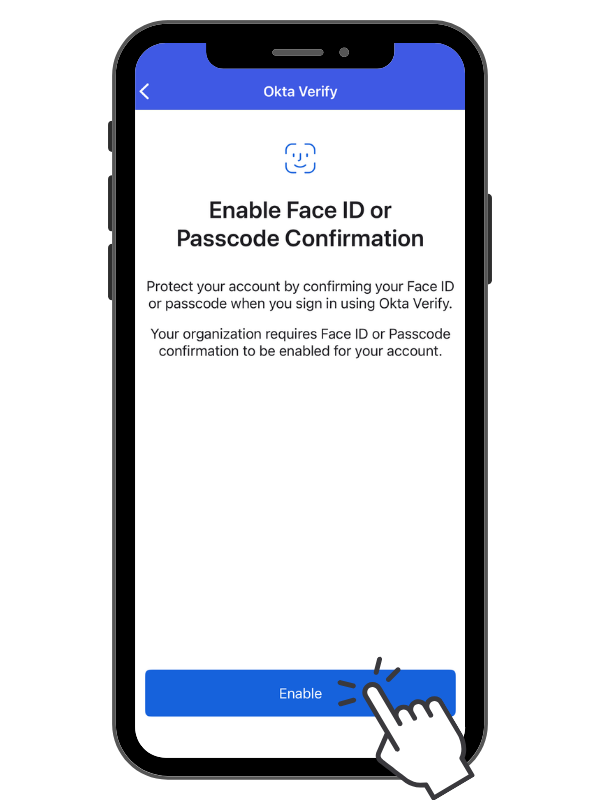
Enable Your Passcode
When prompted, tap Enable to link your device's security (Face ID, Touch ID, or Passcode) to the app.
iOS: Enable Face ID or Passcode
Android: Enable Biometrics or Screen Lock Confirmation
Why is this required? This "ID Check" ensures you are physically holding your device, preventing remote logins by hackers.
Step 09
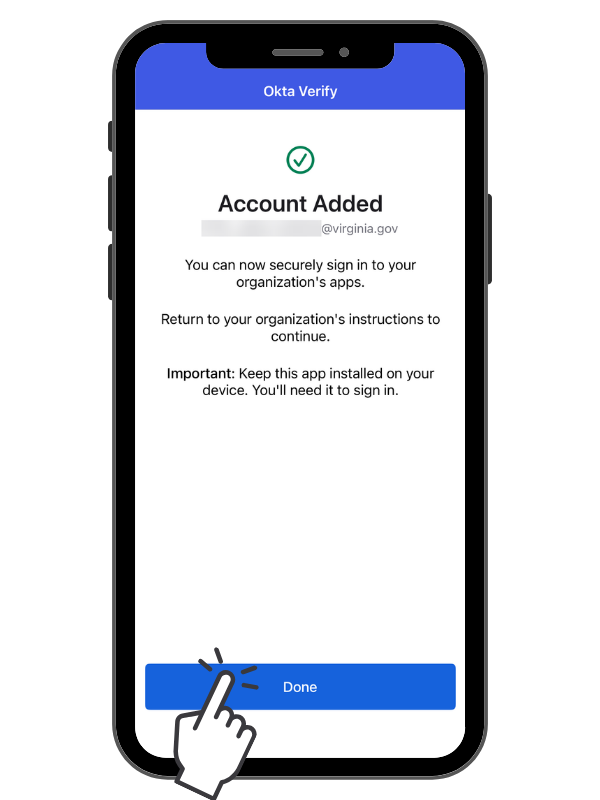
Account Added
Your Cardinal account has been added to Okta Verify.
What’s next? Return to your computer screen. If you see a Continue button, click it to complete your login.
Step 10: Complete! 🎉
Okta Verify setup is complete!
Congratulations! You have successfully configured Okta Verify as a Multi-Factor Authentication (MFA) option for Cardinal.
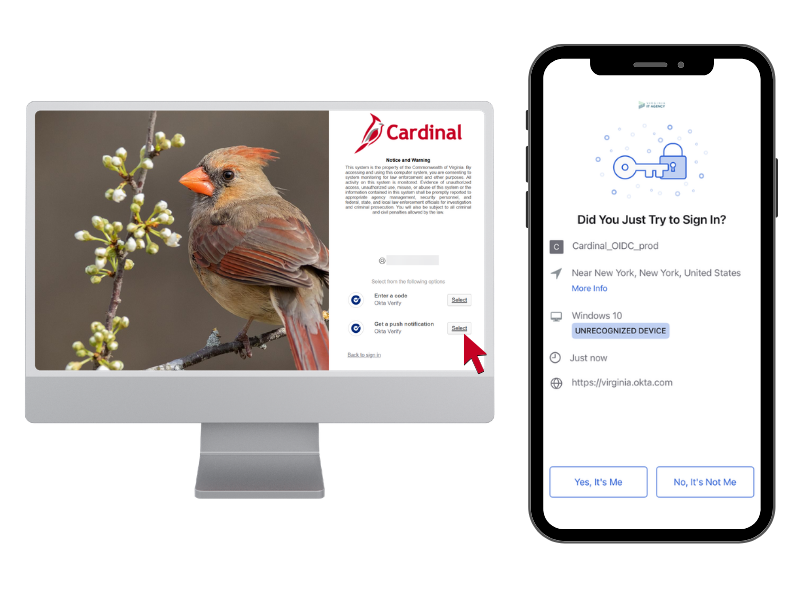
When logging in, you can now choose between two authentication methods:
- Push Notification: Sends a request directly to your mobile device for one-tap approval.
- Or enter a code: Manually enter the 6-digit code displayed within your Okta Verify app.
Important Note on Location: When using push notifications, the login location shown in the alert may not match your physical location. If you recently initiated the login, it is safe to approve the request.